
The first time a film you were halfway through disappears from a service you pay for, the argument for a shelf of your own stops being theoretical.
Jellyfin is that shelf. Point it at video files you already have, and it builds what streaming trained everyone to expect: posters, descriptions, seasons, continue watching, and a play button that works on the television in the other room. It is free software under the GPL. The project says it has no tracking, no phone-home and no central servers, and there is no premium tier waiting to appear.
What it costs is an evening, a disk, and the willingness to name folders properly. I think it is worth all three. I also think the evening is longer than the project’s fans admit.
This is the first part of a series. The install and the first library are here; plugins, transcoding and getting the server out of the house get their own evenings later. If you are still choosing between Jellyfin and Plex, the comparison does that job. This is for people who have picked Jellyfin and want a film playing tonight.
What it does
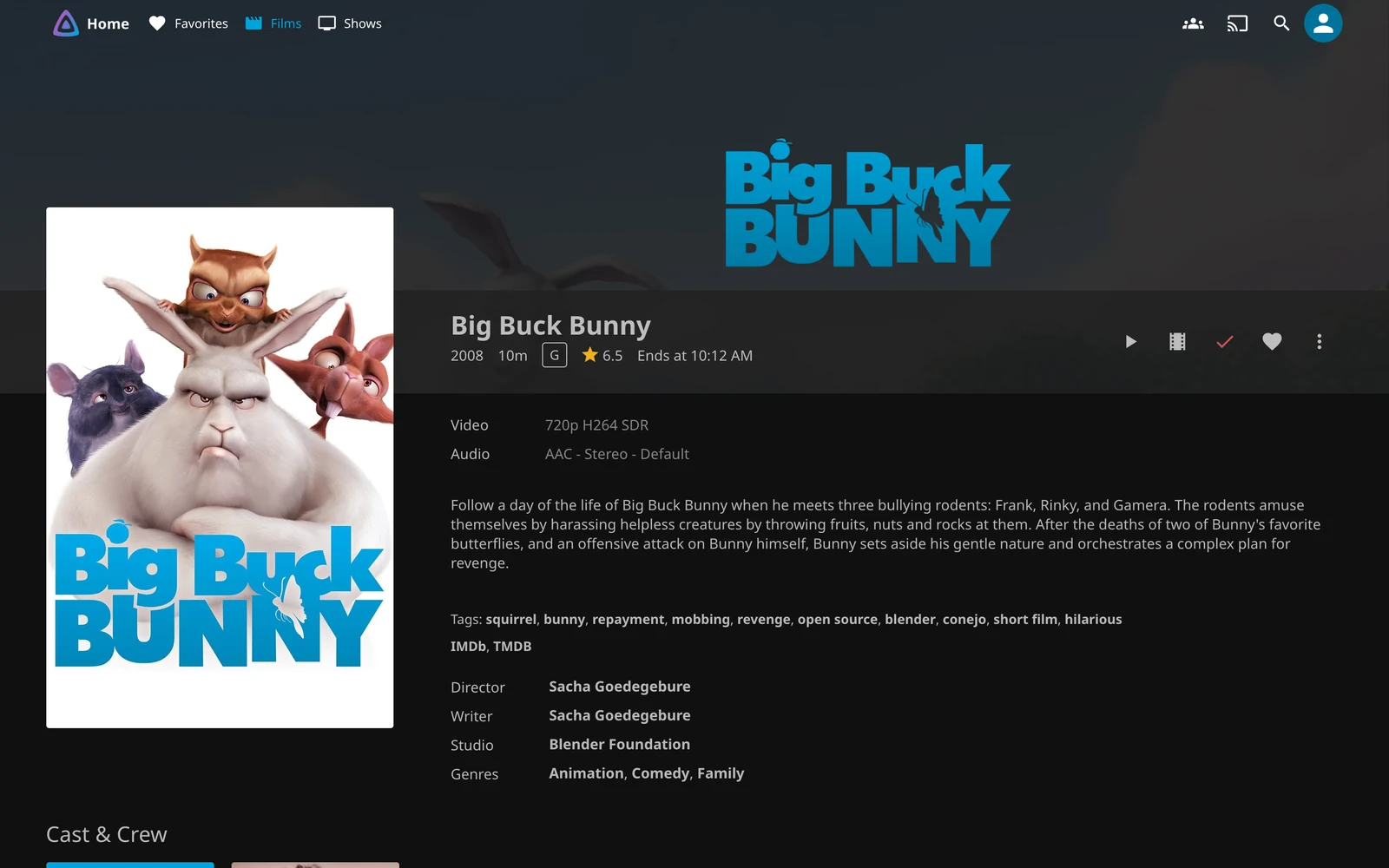
The library is not a catalogue somebody else curates. It is a folder tree with a database in front of it. You put Big Buck Bunny (2008) in a folder with the film inside, tell Jellyfin where that folder lives, and it looks the title up in TMDb or OMDb. It comes back with the poster, the synopsis, the cast, the running time and the rating. None of that is in the file.
The files never move. The database just learns what they are.
That is the magic trick, and the naming rules are its price. Get them right and the library appears by itself. Get them wrong and you spend an evening typing titles into a metadata editor. I would rather spend the hour renaming folders.
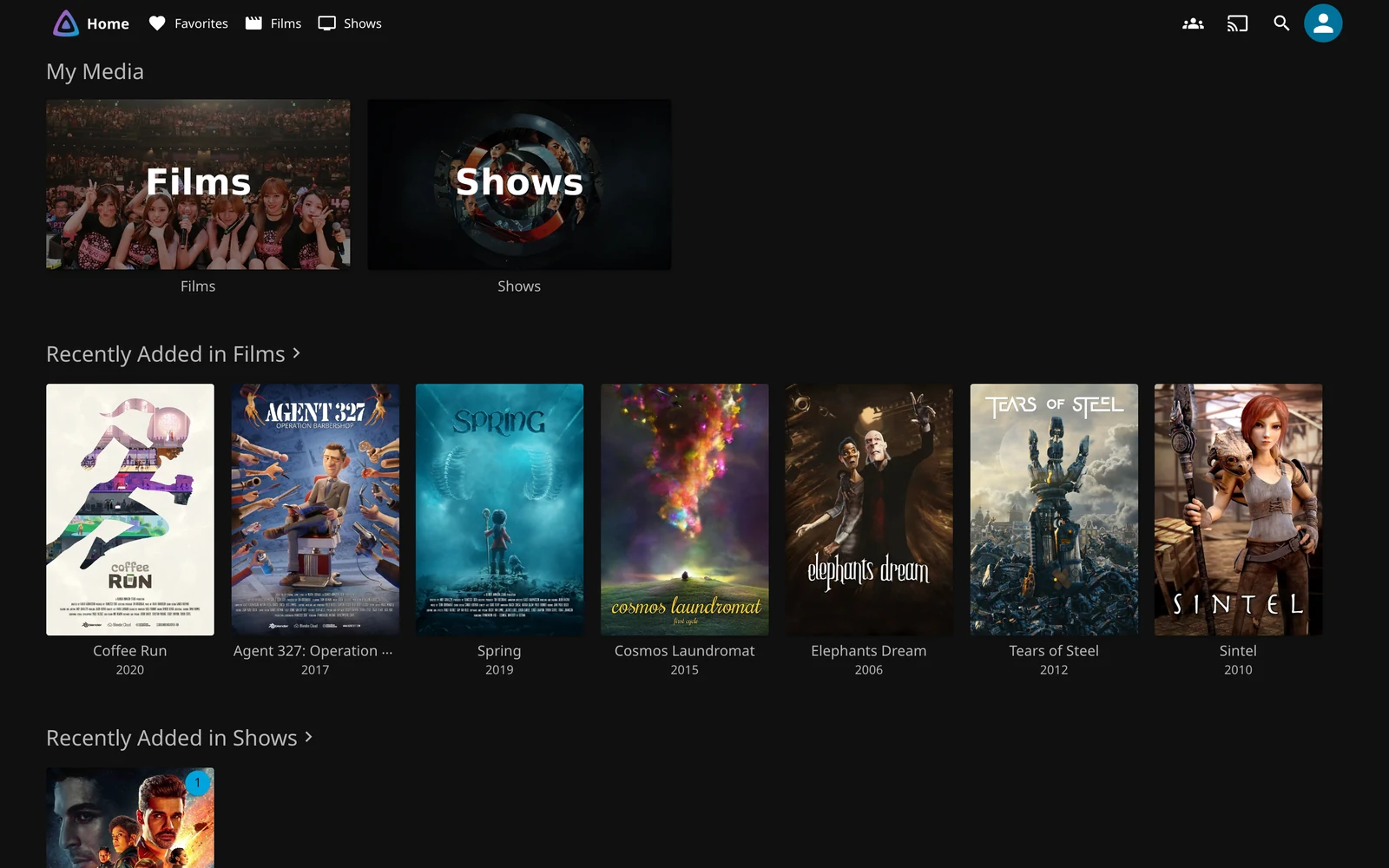
The home screen is built around three habits. Continue Watching holds what you started and did not finish. Next Up holds the next episode of a show you are working through. It is the single feature that makes a series feel like a series rather than a folder of files. Recently Added is the shelf of new things, and it is the row most people actually use.
Playback is where most confusion starts, and it is worth understanding before you blame the server. If the player understands the file’s container, video codec and audio codec, the server sends the file as it is, which is direct play, and it does almost no work.
If the player cannot handle one of those, Jellyfin converts the file on the fly. That is transcoding, and it is the expensive operation. Subtitles can push a file into transcoding too. Burning them into the picture is the heaviest thing the server does.
The dashboard tells you which one is happening, per stream. That page answers most “why is it stuttering” questions before they become a forum post. I check it first whenever playback feels wrong.
There are official apps for Android and Android TV, Fire TV, iOS and iPadOS, Roku, webOS, Tizen and Xbox. Jellyfin Media Player covers the desktop, and JellyCon covers Kodi. That matters more than the feature list. A media server whose television app is an afterthought is a hobby, not a household appliance.
Music, books and photos are library types. Live TV and DVR work if you have a tuner. SyncPlay lets two people in different houses press play at the same moment, which is the closest thing to a watch party without somebody screen-sharing.
What it does not do is supply media, recommend something from a catalogue, or integrate with the services that do. There are no store links and no “leaving soon” row. The library is what you put in it, and nobody else decides what leaves. That is the trade. It is also the reason the thing keeps working when a licensing deal does not.
How you use it
The honest description of Jellyfin in a household is that most people never see the server. They see a television app with a grid of posters, a remote, and a play button. If you have done the setup well, nobody notices the difference until the internet goes down and the films keep playing.
The first thing to set up is not a library. It is the people. Every person gets their own account, and the account carries their own watch state: what they have finished, what they are part-way through, what is next. It also means the children’s accounts can be given their own library access and content ratings instead of a lecture about which folder not to open.
The second thing is the television login, and Jellyfin’s Quick Connect is made for it. Instead of typing a password with a remote, the television shows a code. You enter it on your phone or laptop while signed in, and the television gets a session. It turns a fiddly job into a two-minute one.
Day to day, the habit that matters is to stop browsing the filesystem. Search the library, mark favourites, use the Continue Watching row, and let the metadata do the sorting. The server is at its best when nobody thinks about where a file lives. That takes a week.
The dashboard is where you look when something feels wrong. Active Sessions shows every stream, the user, the device, and whether it is direct playing or transcoding. If somebody says a film is buffering, that page tells you whether the server is working hard or the network is.
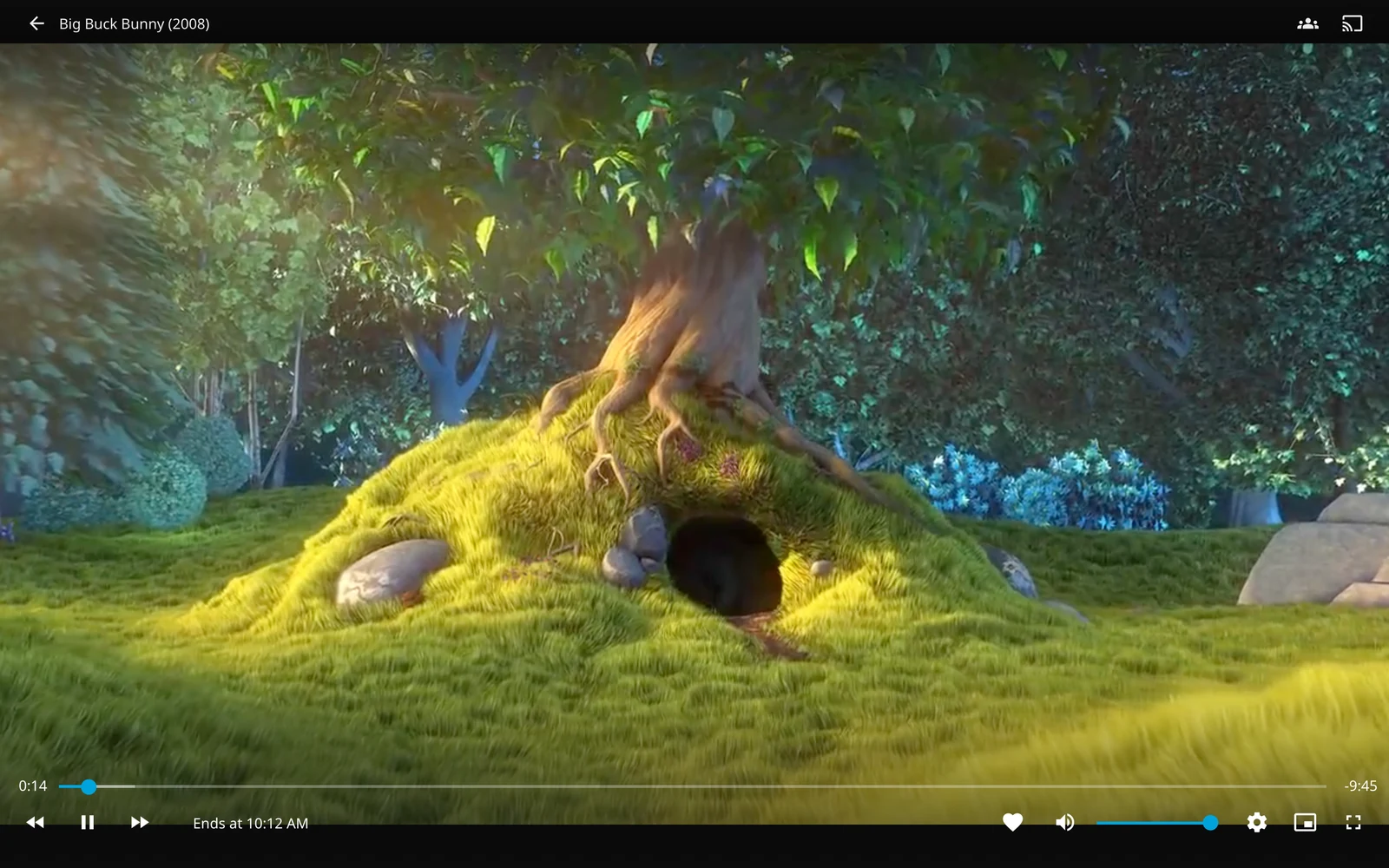
The web player is the least glamorous client and the one you will use most while setting up. It plays, and it shows the codec and transcode decision in the dashboard. It is also the quickest way to check a file is readable. I would keep it open in a tab for the first week.
The first hour
The wizard is short. It asks for a server name, the language, the first administrator account, and a library. You can add libraries later, and you will. The first one is worth doing properly, because the settings you choose at creation are the ones that are annoying to change afterwards.
Content type is not a label. A Movies library, a Shows library, a Music library and a Mixed library are scanned differently and matched against different metadata. If you point a Movies library at a folder full of series, you get a sad list of unrecognised films. Put films under a Films library and series under a Shows library, or use Mixed and accept that the matching is doing more guessing. I would keep them separate. The extra library takes a minute and saves a mess later.
The metadata language and country are set per library. They decide which language the synopses and titles arrive in, and which regional release dates are used. Changing them later means re-identifying the library and waiting for another scan. This is the setting people forget, and then wonder why every film has a German title.
Folders are a path inside the container, not on your desktop. The install mounts a host folder at /media. The library points at /media/Films, not at /home/you/Videos. This confuses people once.
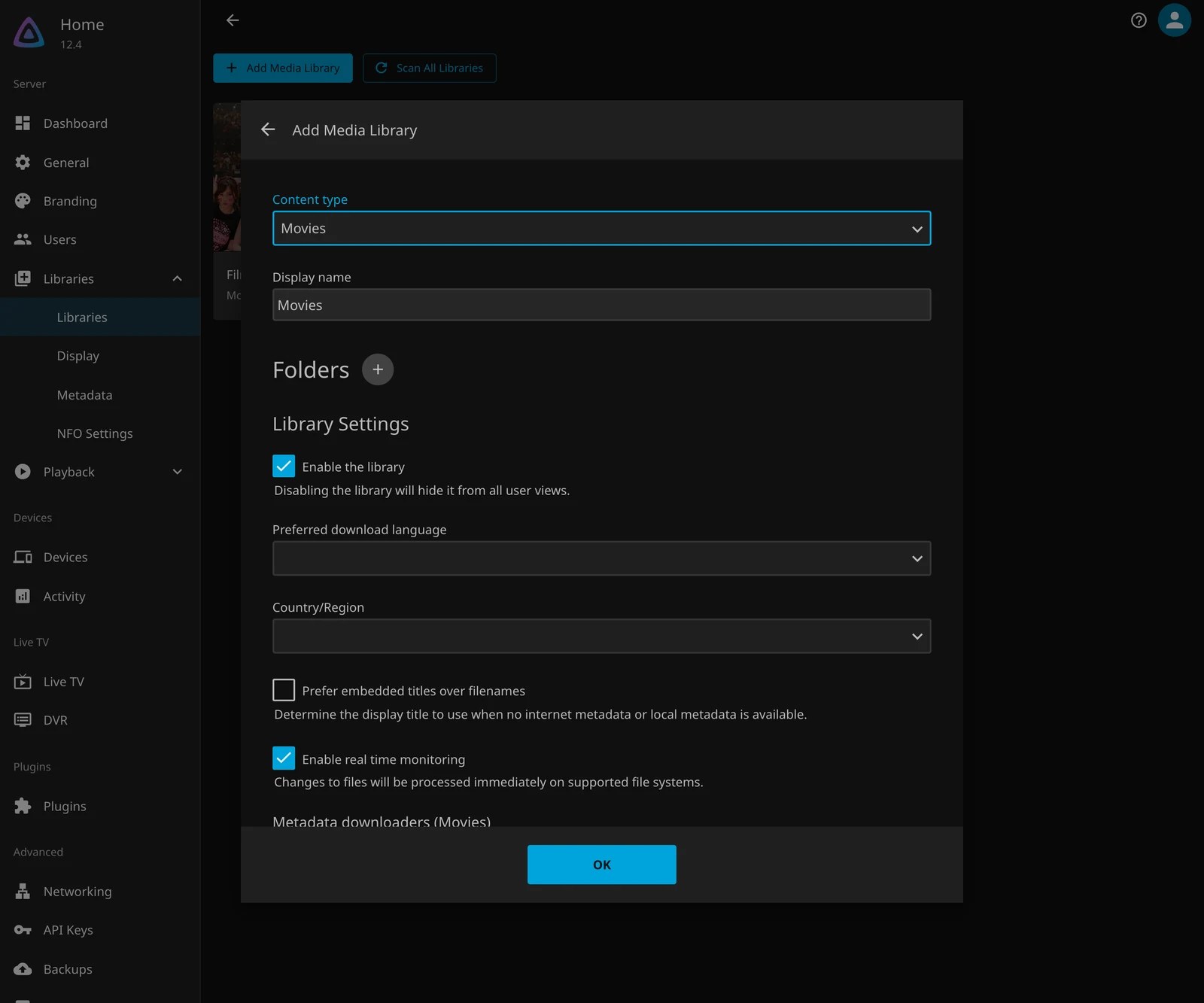
Then scan, wait, and play one film before you copy in the other thousand. One film proves the path, the permissions, the metadata lookup and playback. A thousand films prove them all at once, badly. This is the step I would not skip.
If a title comes back wrong or blank, use Identify on the item and search for it by name or by a provider ID. Jellyfin will accept an IMDb or TMDb ID in the folder name too. That is the reliable fix for remakes, foreign titles and anything with a year in the title.
What it needs
The project does not publish a minimum specification, which I think is the right call, because the answer depends almost entirely on transcoding. A server that only direct plays is a file server with a database. A server that transcodes 4K HDR for a phone on the train is a different machine.
For direct play, almost anything from the last decade will do. A small mini PC, a NAS, a Raspberry Pi 4 or 5 with the right client, even a spare desktop. The files are read and sent, and the CPU has little to do.
For transcoding, the CPU matters, and a GPU matters more. Jellyfin supports hardware acceleration through Intel Quick Sync, NVIDIA NVENC, AMD’s VAAPI on Linux and AMF on Windows, Apple’s VideoToolbox on macOS, and Rockchip’s RKMPP on Linux.
In a container the device has to be passed through, usually /dev/dri for Intel and AMD. NVIDIA needs its own container runtime. The hardware acceleration documentation has the per-vendor detail, and it is worth reading before you buy anything. I would not buy a GPU for this until I had checked what my clients actually ask for.
HDR is the case that catches people. Tone-mapping HDR to SDR in software is slow enough that the documentation says no modern consumer CPU may manage it in real time; a GPU is recommended. If your library is 4K HDR and your television is not, plan for a GPU or plan to avoid those files.
Storage is simpler. The server adds a metadata folder, images, and optional trickplay files (the little preview thumbnails you see when scrubbing). A cache disk helps transcoding, but is not required to start.
The network is the last limit. One 1080p stream is comfortable on Wi-Fi. Several at once, or 4K, is where wired Ethernet earns its keep. If the server is wireless and the television is wireless, the access point is now carrying both halves of the same film. That is the sort of thing you notice at 9pm on a Saturday, not during setup.
The install
The documented path is the official container, jellyfin/jellyfin, and the project publishes a compose file close to this one:
services:
  jellyfin:
    image: jellyfin/jellyfin
    container_name: jellyfin
    user: 1000:1000
    ports:
      - 8096:8096/tcp
      - 7359:7359/udp
    volumes:
      - /srv/jellyfin/config:/config
      - /srv/jellyfin/cache:/cache
      - type: bind
        source: /srv/media
        target: /media
        read_only: true
    restart: 'unless-stopped'
    environment:
      - JELLYFIN_PublishedServerUrl=http://jellyfin.example.org
The settings that matter are the user, the mounts and the published URL. user runs the server as your own UID and GID instead of root, which keeps the files it writes yours. Remove it if you would rather use the image default. I would keep it, because root-owned media is a nuisance to clean up later.
The two /config and /cache mounts are the server’s state, and /config is the one you back up. /media is your library, mounted read-only because the server has no reason to write to your films. JELLYFIN_PublishedServerUrl is optional, and only matters when clients should be told a different address from the one they connected to, usually because a reverse proxy sits in front.
docker compose up -dThe server comes up on port 8096. Open http://<server>:8096 and the wizard starts. There is no default password and no account until you make one. Make it a good one.
Running the container on macOS or Windows is not supported; the project says some features break, notably hardware acceleration, and there is no support for that setup. On a Linux host, the official image is the simplest route. The LinuxServer.io image exists and is well maintained, but it puts the config in a different layout, so pick one and do not mix instructions from both. Mixing them is how you get a config folder with two owners and a database that disagrees with itself.
If the library is on a NAS, mount it read-only and give the container a user that can read it. What you do not want is the config inside the media folder. The first backup or rsync of the media will then carry the database along with the films, and the two will drift. That is the setup that ends with a restore.
Getting the library in
The naming rules are the ones from the media documentation, and they are worth following exactly:
Films/
└── Big Buck Bunny (2008)/
    └── Big Buck Bunny (2008).mp4

Shows/
└── The Expanse (2015)/
    └── Season 01/
        └── The Expanse (2015) S01E01 Dulcinea.mkv
A film gets its own folder, named for the title and year, containing a file with the same name. A series gets a folder named for the show and year. Season folders are named Season 01, not S01, and episode files carry the show name, season and episode number. Extras go in subfolders with names Jellyfin recognises, such as trailers, interviews and behind the scenes. External subtitles take language suffixes such as Big Buck Bunny (2008).en.srt.
This is the part people skip, and then they blame the scanner. The naming rules are not decoration. They are the interface between your files and the database, and the database is what the household sees.
If a match is stubborn, add a provider ID to the folder or file name: The Expanse (2015) [imdbid-tt3230854]. That is also the answer for a remake with the same title as the original, or a film whose local title does not match the one in the database.
The scan itself is incremental. Add a file, Jellyfin notices if real-time monitoring is on, or picks it up on the next scheduled scan. A large first scan takes a while, mostly because it is fetching metadata and generating images. After that, the library is mostly idle. Put the kettle on and leave it alone.
Keeping it alive
The built-in backup system arrived in 10.11 and is the first thing to turn on. It lives under Dashboard → Backups and writes a zip of the database, metadata, subtitles and trickplay data while the server is running. The project recommends running it when nothing is scanning, and the panel checks for 5 GB free before it starts, and that is not generous for a real library with subtitles and trickplay.
That backup covers a corrupted database. It does not cover the disk the backup sits on, because the default backup folder lives inside the Jellyfin data directory.
Copy the /config volume somewhere else on a schedule, or run the built-in backup and then copy the archive off the box. The restore runbook covers the order to bring a service back in if the whole box dies. The manual route is documented too: stop the server, copy the whole config directory, start it again.
Stopping matters, because copying a live database is how you get a backup that will not restore. I would test one restore before I needed one. That is the only way to find out the archive was sitting inside the folder it was meant to protect.
The upgrade rule is simple: Jellyfin has no downgrade mechanism. Once a new version has started and applied its migrations, the old version will not read the data. A backup taken before the upgrade is the only way back. That is not a reason to avoid upgrades; it is a reason to take the backup first, every time.
Upgrading the container is docker compose pull && docker compose up -d. Read the release notes before a major version, and check the plugins afterwards. The 12.0 release would not load the 10.11-era plugins, and a plugin that has not been updated can leave a page broken until it is removed. The 12.0 write-up covers that migration in more detail.
Remote access is deliberately not in this part. The short version is that you put Jellyfin behind a reverse proxy with TLS. Tell Jellyfin which proxy to trust under Networking → Known Proxies, and avoid changing the base URL unless you have to. The long version, including the mistakes that lock you out, is the fourth part of this series.
What the series is for
An evening gets you a server that plays films on every screen in the house. It does not get you a library that feels finished, because the finishing is metadata. The right poster, the right subtitle, the right episode order, the plugin that fills a gap the scanner cannot.
That is the next part, and it is the part I would actually spend the weekend on. The install is the easy part. Keeping the library good is the part that never really ends.
Sources: container installation, media naming, hardware acceleration and backup and restore. Clients and the project home page cover the rest. The screenshots come from a throwaway Jellyfin 12.4 instance with a test library. No household library was touched.