
The first time you want to watch something from a hotel, the server stops being a household appliance and becomes a security decision.
The tempting move is to forward port 8096 on the router and be done. I would not. Jellyfin’s own hardware guide says the server is not designed to be exposed directly to the internet. The networking page goes further and calls opening a port straight to the internet insecure and not recommended. That is the project being polite. A media server with a login form, a web UI and a database does not belong on the public internet without something in front of it.
This is the last part of the series. Part one built the server, part two made the library look right, and part three covered the hardware question. This one is the front door.
Four ways out
The networking page lists the common methods, and they are not equal.
| Method | What it needs | What the internet sees |
|---|---|---|
| Port forward | A rule on the router | The server itself |
| Reverse proxy | A domain, TLS, ports 80 and 443 | The proxy |
| VPN | A client on every device | Nothing |
| VPS proxy | A small server elsewhere plus a tunnel | The VPS |
The project marks direct port forwarding as not recommended. I would go further: it is the option you choose when you have not decided to do the work, and it is the one that gets scanned first.
A reverse proxy is the public option. A VPN is the private one. The VPS proxy is for people who want a public entry point without exposing their home address, or whose connection cannot accept inbound traffic at all.
The private route
Tailscale is the option I would start with for a household. The project’s own page describes it as a WireGuard-based VPN that works when opening ports is undesirable or impossible, including behind CGNAT.
The setup is two commands and an account. On the server, sudo tailscale up. On each client, the same, or the app. Then you connect to the server’s 100.x address on port 8096 instead of its LAN address. No router change, no public IP, no certificate to renew. That is the appeal.
The project is honest about the cost. Every client needs Tailscale installed, blocking clients from talking to each other takes extra configuration, and you need an account with a third party. For a family, that is a fair trade. For a friend who wants to watch one film, it is awkward, because they have to join your tailnet first.
If your connection is behind CGNAT, this is also the route that avoids a fight with the ISP. The CGNAT bridge guide covers the wider version of that problem.
The public route
If you want a URL that works in any browser, you need a domain, a proxy, and a certificate. Caddy is the one Jellyfin recommends, mostly because it gets the certificate for you.
Jellyfin can serve HTTPS itself on port 8920, and the project supports it. It still recommends terminating TLS at a reverse proxy, and it strongly discourages self-signed certificates. I agree with both. A proxy gives you one place for certificates, one place for logs, and one place to add a rule later.
The smallest version is a one-liner on the proxy host:
caddy reverse-proxy --from jellyfin.example.com --to 127.0.0.1:8096The Caddyfile version is the same thing with a file to keep:
jellyfin.example.com {
	reverse_proxy 127.0.0.1:8096
}
Point the domain’s A or AAAA record at your public address, forward ports 80 and 443 to the proxy, and Caddy obtains a Let’s Encrypt certificate without further instruction. The project says HTTP/3 needs UDP 443 as well. I would open it only if I wanted HTTP/3; the site works without it. Most people do not need it.
A domain is not strictly required, but it is what makes the certificate automatic and the URL stable when your public address changes. If the address is dynamic, a dynamic DNS client keeps the A record current. Caddy renews the certificate on its own; the job you have is keeping the domain pointed at the house.
If Jellyfin runs in Docker, 127.0.0.1:8096 is wrong from inside the Caddy container. Use the container name on a shared network, or the host address. That mistake produces a 502 and a long evening.
A compose file for the proxy is short:
services:
  caddy:
    image: caddy:2-alpine
    ports:
      - "80:80"
      - "443:443"
      - "443:443/udp"
    volumes:
      - ./Caddyfile:/etc/caddy/Caddyfile:ro
      - caddy_data:/data
      - caddy_config:/config

volumes:
  caddy_data:
  caddy_config:
The two volumes matter. They hold the certificates and the account key. Lose them and Caddy issues new certificates, which works until it hits the rate limit.
If Jellyfin and Caddy are both in compose, put them on the same network and proxy to the service name: reverse_proxy jellyfin:8096. That avoids publishing Jellyfin’s port to the host at all, which is the cleaner arrangement. A 502 usually means the proxy cannot resolve or reach that name.
One firewall note: publishing a port with Docker can put it past the host firewall, so check what is actually listening rather than trusting the firewall’s rule list. The only ports that need to face the internet are 80 and 443, and both should point at the proxy, not at Jellyfin.
The setting people miss
Jellyfin sees the proxy’s IP address, not the client’s. That is not a logging detail. It breaks the difference between a local and a remote connection, and with it every per-user remote-access rule you set.
The fix is the Known proxies field on the Networking page. Put the proxy’s address there, and Jellyfin will trust the X-Forwarded-For, X-Forwarded-Proto and X-Forwarded-Host headers from that address. Without it, the project says Jellyfin discards forwarded headers that do not come from a known proxy, so a malicious client cannot hide behind one.
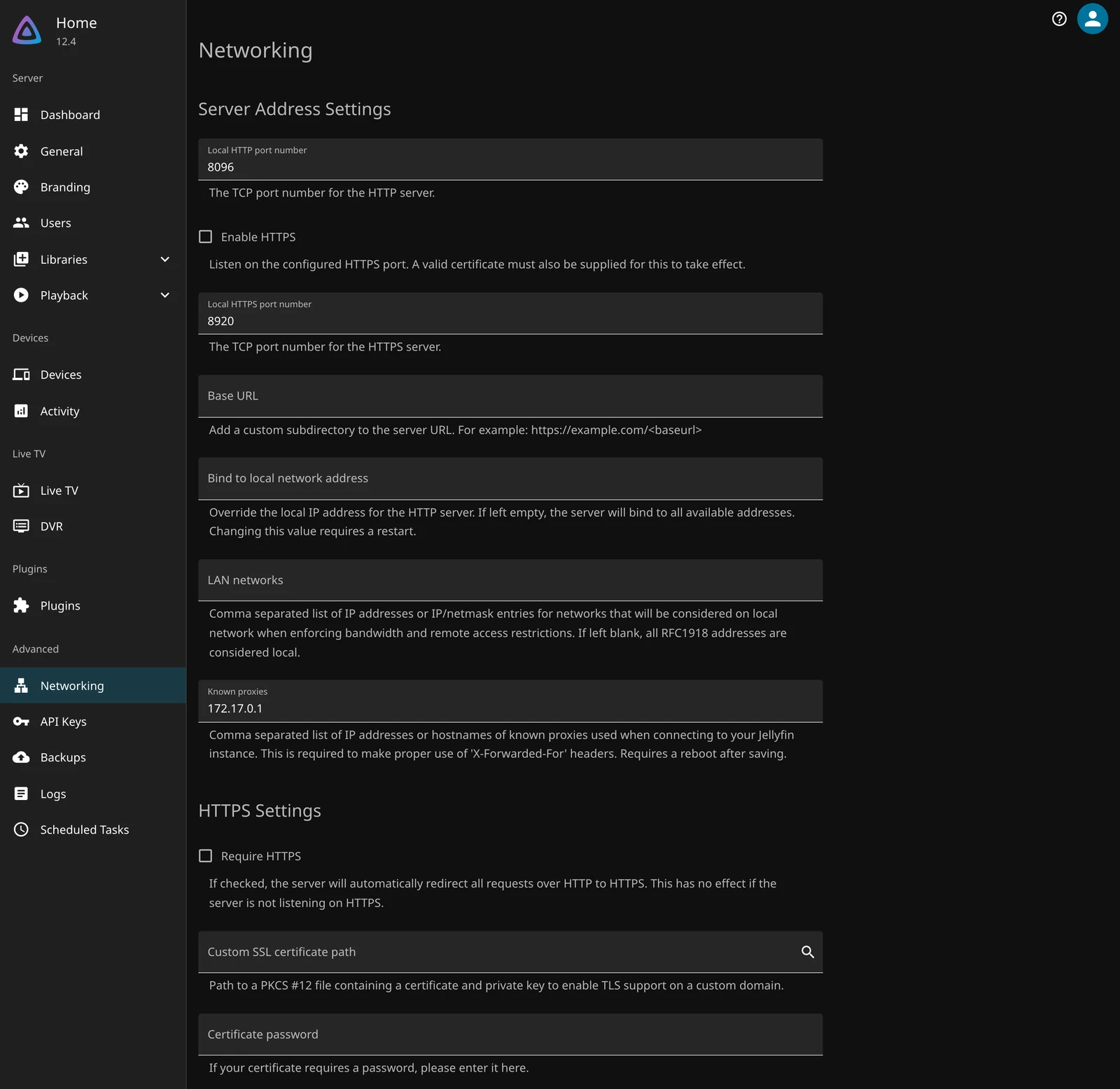
The field takes a comma-separated list, and the page says a restart is required after saving. If the proxy is in Docker, the address Jellyfin sees is often the Docker gateway, not the container’s own IP. Check the proxy logs or Jellyfin’s activity page if you are unsure. On the test server, the Caddy container reached Jellyfin from 172.17.0.1, and that is the value in the field.
There is a second proxy trap in the project’s documentation. Jellyfin can put an API key in a URL, so a proxy that logs full request paths can write secrets into its log. Either do not log full URLs or restrict who can read the log.
When it does not work, the symptoms are usually one of three things.
| Symptom | Likely cause |
|---|---|
| 502 from the proxy | Wrong upstream address, or the containers are not on the same network |
| Remote users still blocked | The user’s remote-access switch is off, or Known proxies is missing the proxy |
| Websocket errors in the browser | The proxy is not passing the upgrade |
The project calls out websockets explicitly, and Caddy handles them by default. Nginx and some other proxies need the upgrade headers set. If the page loads but playback controls and live updates do not, look there first.
Do not set a Base URL unless you need one
A Base URL puts Jellyfin under a path, such as example.com/jellyfin. It is supported, and it is the wrong default.
The project lists what it breaks: HDHomeRun, the DLNA plugin, Sonarr, Radarr and MrMC. It requires a restart. Clients do not follow the redirects automatically, so an Android TV box has to be told the Host includes the path. Removing a Base URL later invalidates every old path and returns 404s. Setting one, or changing it, gets redirects; removing it does not.
I would use a subdomain and leave Base URL empty. The only reason to take the path is a domain root that already belongs to something else and cannot be moved.
Who gets in
Jellyfin’s remote access is per user. The user’s profile has Allow remote connections to this server, and unchecking it blocks that account from outside. The admin account is not the account you hand to a television.
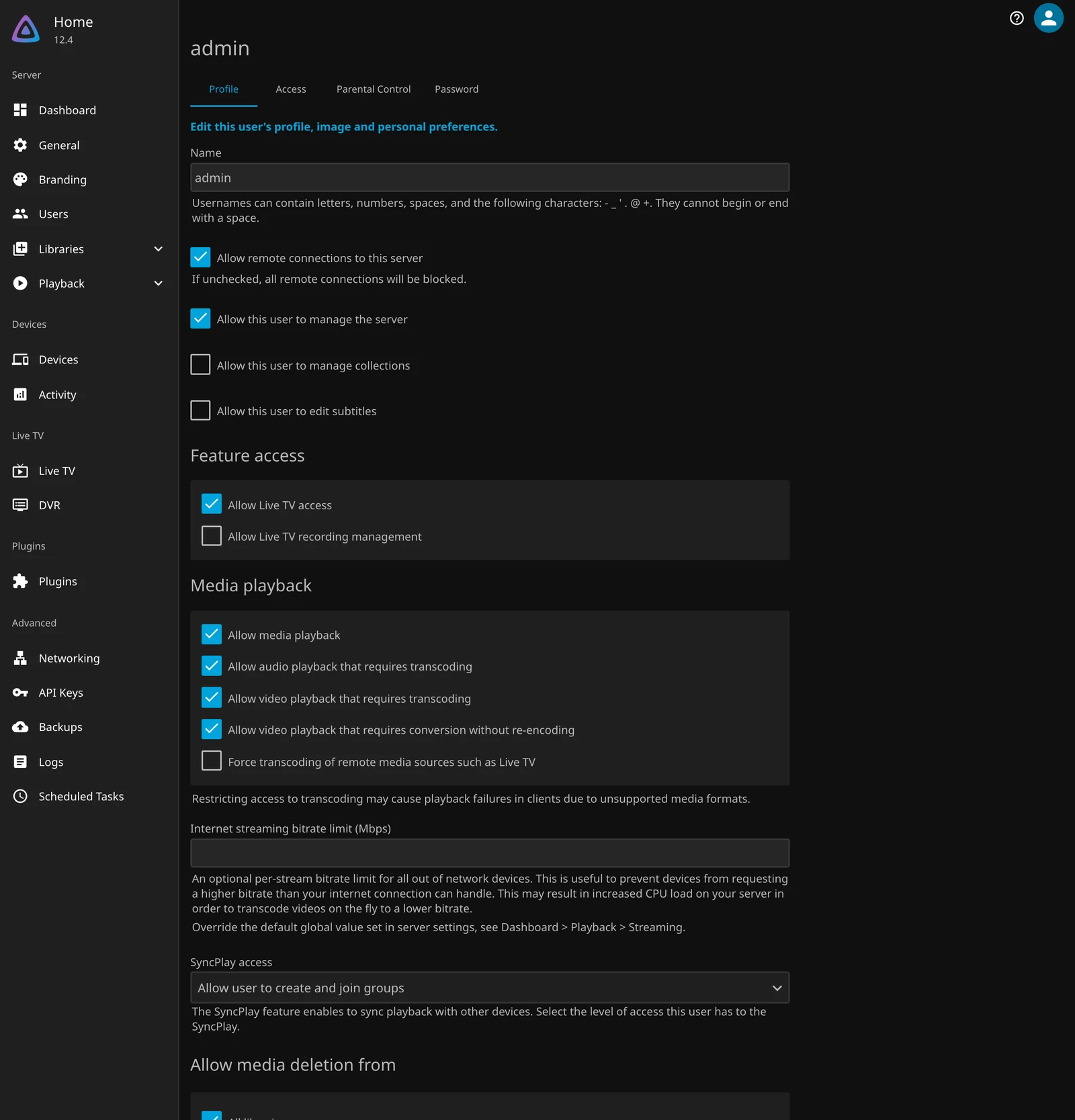
The same page has an Internet streaming bitrate limit in Mbps. That is the per-stream cap for out-of-network devices, and it is the setting that stops a phone on mobile data from asking for a 40 Mbps file. It is also the setting that causes a transcode you did not expect, which is the bridge back to part three.
Remote access also changes the bandwidth question. Home upload is usually much slower than download, and one 4K stream can use more than the whole line. The bitrate limit is the blunt fix; a better one is a smaller file for the phone. Either way, the server does the work, and the hardware conversation from part three comes back with a different constraint.
The first external test should be boring. Open the URL on a phone with Wi-Fi off, sign in as a normal user, play something for a minute, and check the dashboard while it runs. If the session says remote and the stream plays, the front door works. If it says local, Known proxies is still wrong. Test the admin login separately, and only after the normal user works. The order matters.
The definition of “local” lives on the Networking page as LAN networks. Leave it empty and Jellyfin treats the RFC1918 ranges as local. If your network uses something unusual, or the proxy makes everything look local, this is the field that fixes it.
What I tested
I put the throwaway Jellyfin behind a Caddy container on the same Mac, with a locally issued certificate and the proxy published on port 18443. The request to /System/Info/Public came back 200 over HTTPS, and the certificate was issued by Caddy’s local authority. I set Known proxies to the address Jellyfin saw the proxy from, enabled remote access, and confirmed the values stuck.
That proves the proxy path and the settings. It does not prove a public deployment. There was no public DNS record, no port forward, and the certificate was internal rather than Let’s Encrypt. I would not publish a guide that claimed an external test it did not run.
The security work is what remains after the proxy. Use a unique password for the admin account, give each person their own account, and keep the server updated. The project recommends checking the public endpoint at SSL Labs once it is live. None of that is exotic; it is the difference between a front door and an open one.
One thing remote access does not change is the backup rule. A server that is reachable from outside is a server that can be lost from outside, and the config volume is still the thing you cannot rebuild from memory. The restore runbook still applies. I would test a restore before I exposed the port, not after.
What I would do
For family, I would install Tailscale and stop there. It is the smallest change, it works behind CGNAT, and there is no login page on the public internet to defend.
If I needed a URL for people outside the house, I would put Caddy in front and forward only 80 and 443. I would set Known proxies, leave Base URL empty, and give those people their own accounts with remote access enabled. I would keep the admin account off the public URL, or at least give it a password I do not use anywhere else.
Then I would test it from a phone on mobile data, not from the sofa. The whole point is the network you are not on.
That is the series. The install, the library, the playback decision, and the front door. The server is yours now, which is the only feature the streaming services cannot take back.
Sources: networking, reverse proxy, Caddy, Tailscale, Let’s Encrypt and hardware selection. The proxy test used a throwaway Jellyfin 12.4 container and a Caddy 2 container on the same machine, with a locally issued certificate. No household network was exposed.